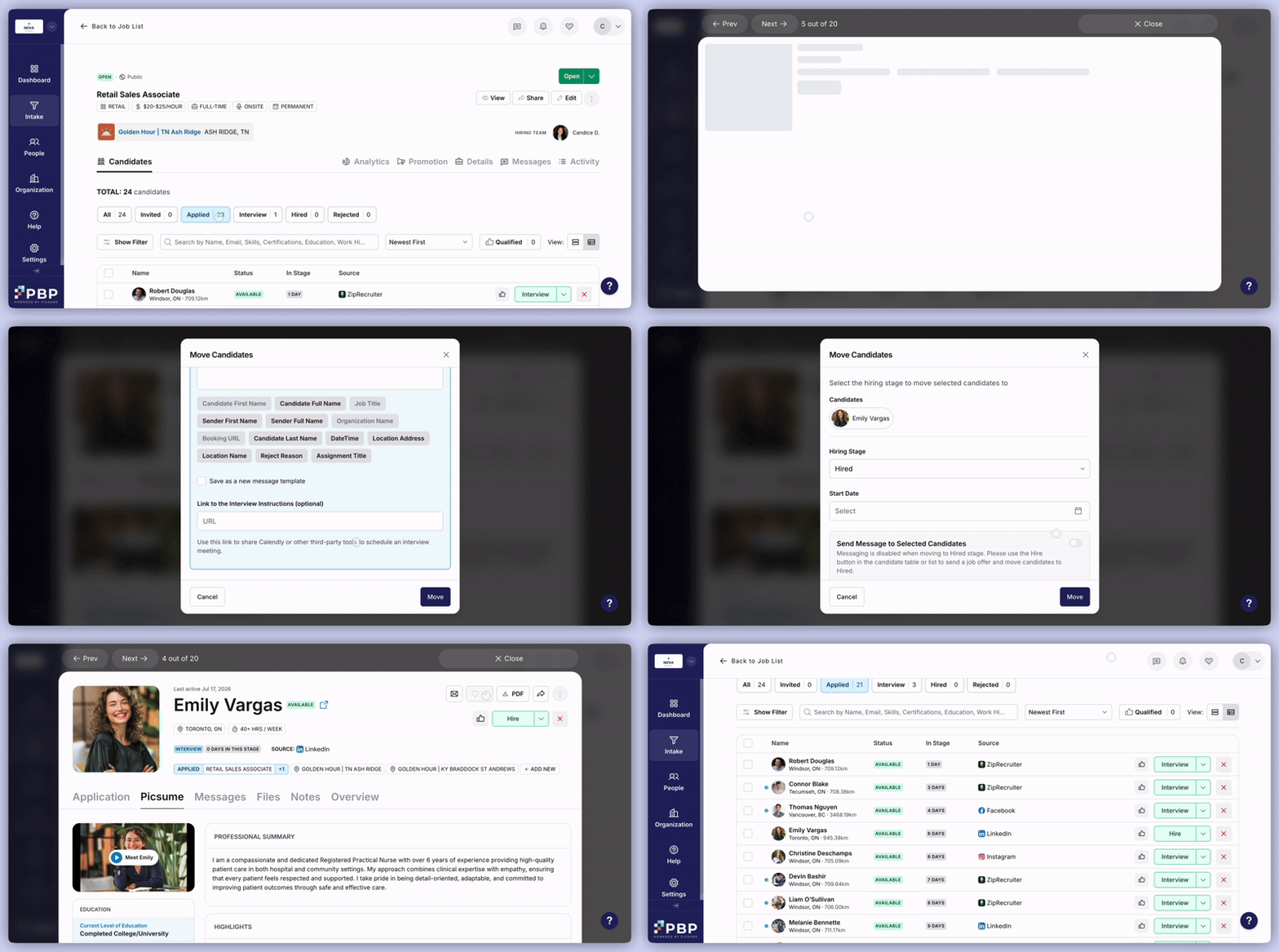
Stages are a way to sort your candidates into separate lists as they progress through the hiring process. By default, you land on the list for the ‘Applied’ stage when you click on a job.
Each job includes default stages: Invited, Applied, Interview, Hired, and Rejected. You can add, edit, reorder, or delete stages from the Hiring Stages menu in the three-dot options next to Edit.
Avoid repeating this for each individual job by creating a custom Hiring Stages Template that can be accessed across all jobs.
If you are interested in an applicant, click the Interview button to schedule your interview with them. In the window that pops up, select the stage to move the candidate to (by default it will be ‘Interview’).
You can optionally send a message pre-filled with the ‘Schedule an Interview’ message template, and customize it as needed. Add interview details or a link (for tools like Calendly) so candidates can book directly.
To move candidates across stages in bulk, use the checkbox to the left of their name to select multiple candidates (you can use the checkbox in the top left corner to select all of them) and then under “Select Action” choose what you want to do with them.
After a successful interview, click Send Offer to send an offer using the “Offer Letter” template and enter Hourly Rate and Start Date. When the candidate accepts, they move to the Hired stage and you’ll be prompted to send onboarding instructions.
When you reject a candidate, they move to the Rejected stage. You can press the heart icon on promising candidates to add them to one of your Shortlists for future opportunities.